Making Predictions using a Zapier Integration
Connect your ML models to thousands of apps with no-code automation and real-time predictions

The adoption of explainable machine learning models in organisations has been rapidly growing. Organisations are adopting machine learning to make decisions based on accurate predictions, with an emphasis on clear and concise explanations of how the models arrive at these predictions.
However, for organisations to make informed and beneficial decisions based on machine learning, the typical process involves a data scientist being tasked with creating the model, deploying it, and ultimately making predictions.
At Xplainable, we’re committed to making the predictions of an extremely accurate and reliable model accessible to all users, even those without a technical background. As such, this guide is aimed to demonstrate how after a model and deployment has been created, making predictions on data, as achieved in this Telco Customer Churn & Retention guide, can be done entirely without any code.
1. Creating a Xplainable Model and Deployment
Firstly, make an Xplainable account, which will allow you to make free models and deployments. Following this walkthrough, create a model and deployment for your data. Whilst this does require some code (which we hope to address soon), once these are set up, any predictions you make can be done completely without code, even with changing data values.
2. Build the Zapier Integration
We need to provide Zapier with a dataset that has our Telco Customer data, which can be in a wide range of platforms ranging from CRMs to Google Sheets. For ease of demonstration, we’ve chosen Google Sheets.

Next, you’ll have to choose what triggers a prediction, which we’ve chosen to be a new or updated Spreadsheet Row, and connect the appropriate spreadsheet.

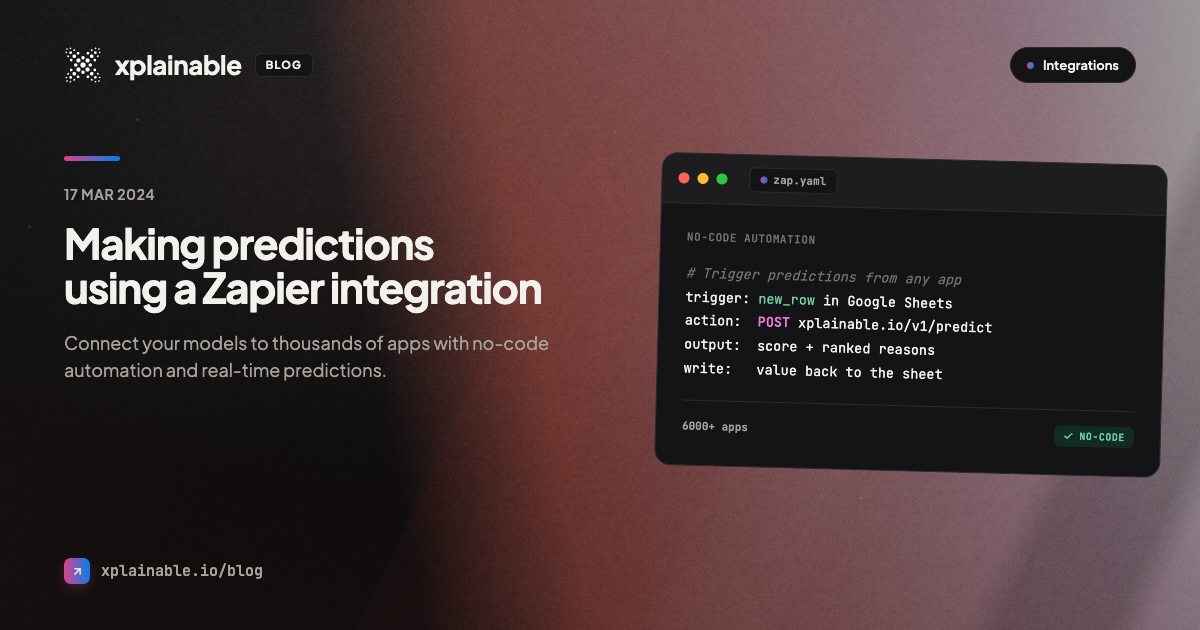
Now, we have to connect to Xplainable to make the predictions, which we will do by creating a webhook.

Set up the webhook following these conventions:
-
Event (the method): POST
-
Payload Type: json
-
Data: You must input the correct name (same formatting) and the correct column in the spreadsheet such that it matches the columns your model was trained on.

-
Wrap Request In Array: Yes
-
Headers: key: api_key, value: the deployment key generated from Xplainable

Test the webhook, and you should see an output is similar to this. If you are getting an error or having troubles setting up the webhook, reach out to [email protected].

3. Output the Predictions
Once you have the webhook set up, how you choose to use the prediction is completely flexible. Zapier supports over 5000 actions, which means that you’re almost guaranteed to find something that works for you or your team. In this guide 3 simple possibilities will be covered: adding the response to a spreadsheet, sending an email with the prediction value, and sending a message to a Slack channel.
3.1. Adding the Response to the Spreadsheet
Select your desired action, which we’ve chosen to be ‘Create Worksheet’ in our original spreadsheet. Then input what columns you would like in this new worksheet, which could be as simple as just the customer ID and probability of churning, or all the breakdowns for each variable.

3.2. Sending an Email
Add the Gmail action to your Zap and select the ‘Send Email’ event. After that, it’s as simple as adding the prediction response to the body of the email and customising the email that will be sent, such as selecting the recipients and subject.

3.3. Sending a Slack Message
First, connect your Slack account to Zapier and give it permissions to send messages. Then, fill out the actions tab to customise the message sent.

These are some very simple ways to take the prediction returned from the Xplainable model and integrate it into your business’ workflow such that it could be done by anyone. However, this is in no way suggesting that you cannot make the Zap more sophisticated. For example, maybe you would like to send an email to the marketing team when a high churn prediction value is returned, which would allow the team to contact customers before they churn. Or perhaps, you’d like to sort the predictions into different spreadsheets, grouped by customers’ likelihood of churning.
Conclusion
Hopefully this guide showed you how easy it is to integrate Zapier with Xplainable. This will allow you to make predictions in a way that can benefit your organisation without the need for any code or technical background.